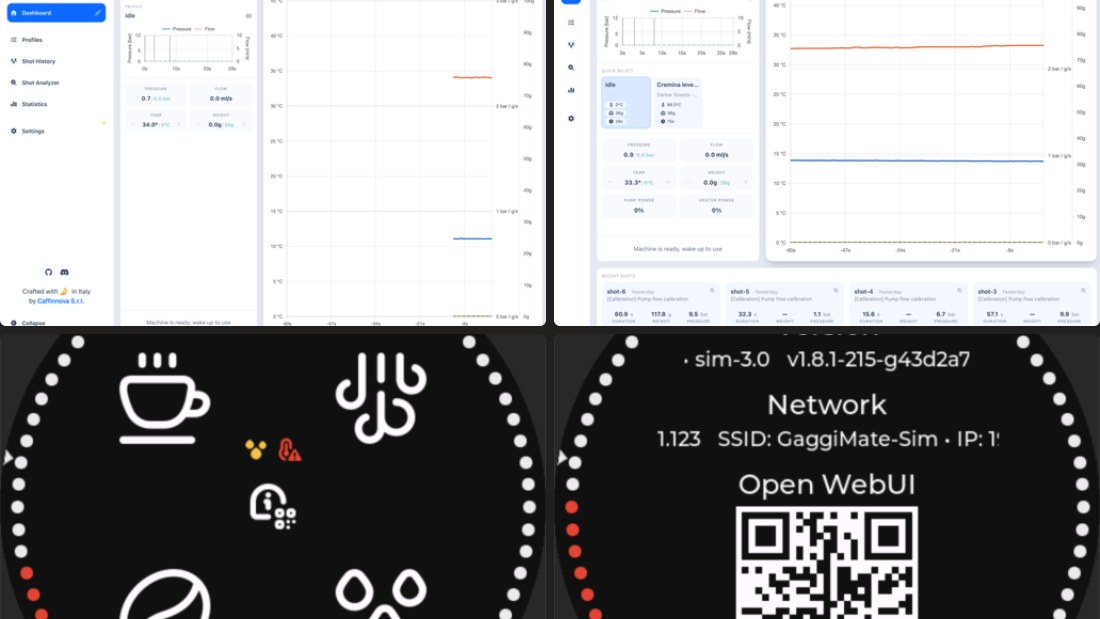
Updating Gaggimate is easy once you’ve done it, but the first time raises questions: where do I start the update, do both boards need it, and what do I do when the machine is suddenly off my WiFi. This is the guide I’d have liked for my first update. I keep it current, and what changes in each release is in my Gaggimate update articles.
As of 23 November 2026 the current stable version is 1.10.0, released on 18 November. You can always see the latest version on the releases page.
Quick answer
- Back up your profiles and settings.
- Open the web interface, usually at
http://gaggimate.local, and start the update there. - Update the display and the controller, so both run the same version.
- If the update over WiFi fails, use the web flasher in Chrome, Edge, or Opera over USB.
Before you update
Back up your profiles. On my last update everything was still there afterwards: profiles, settings, and shot history. I still make a backup every time, because a lost profile costs more time than the backup.
Update both boards. Gaggimate has two boards, the display and the controller in the machine. Since 1.9 they talk over a new protocol, and mixed versions don’t work properly. If the versions don’t match, the display tells you on the standby screen.
Read the release notes. Some releases change things you’ll notice right away. In 1.9, for example, the physical switches got new functions you assign in the web interface. My 1.9 article shows what that looked like on my machine.
Updating over WiFi (OTA)
This is the normal way, and it’s how I update my Gaggia Classic. You start the update in the web interface, and the firmware downloads over WiFi. On my machine it took a few minutes and ran without a dropout. Since 1.9, interrupted downloads resume, and a failed update shows a clear screen instead of leaving you guessing.
According to the docs, the update over WiFi and the web flasher only support the recommended hardware: the ESP32-S3 N8R8 controller and the LilyGo display. If you built your own board, you flash with PlatformIO over USB.
The web flasher: when OTA fails
Use the web flasher if the update over WiFi fails, if you’re coming from a much older version, or if you’re flashing a board for the first time.
- Open the page in Chrome, Edge, or Opera. Other browsers can’t talk to the USB port.
- Connect the board with a USB data cable. A charge-only cable won’t work.
- Click Flash Display or Flash Controller, depending on the board.
- If the board isn’t detected, hold the BOOT button (SW1) while you plug in the cable. That starts the bootloader, which you often need the first time.
After flashing the display, the start screen appears.
Nightly or stable?
Besides the stable releases there’s a nightly, an automatic build of the latest development state. In the web interface you can switch to the nightly channel and download it from there. The nightly gets new features first, but it’s untested, and anything in it can still change before the next release.
I don’t run the nightly on my machine. I want my coffee to work in the morning. If you want to try it, back up your profiles first. The docs don’t describe how to switch back to stable, so ask in the Gaggimate Discord before you try it.
WiFi gone after the update?
- Find the web interface: after setup it runs at
http://gaggimate.local. Since 1.9 the display also has an info screen in the menu that shows you how to reach WiFi and the web interface. - Connect to the hotspot: if Gaggimate can’t find your WiFi, it opens its own hotspot. Up to 1.8.1 it was called “GaggiMate” and had no password. Since 1.9 it has a password, and you connect by scanning the QR code: open the menu on the display and tap the i info icon in the middle.
- Change WiFi over USB: connect the display with a data cable, open ota.gaggimate.eu, click Connect, choose GaggiMate Display and the serial device, then Change WiFi.
When nothing works
Check the troubleshooting page in the docs first. After that, the Gaggimate Discord is the best place to ask. When my board died, I got help there quickly and a replacement without any hassle. You can read that story in my Gaggimate review after six months.